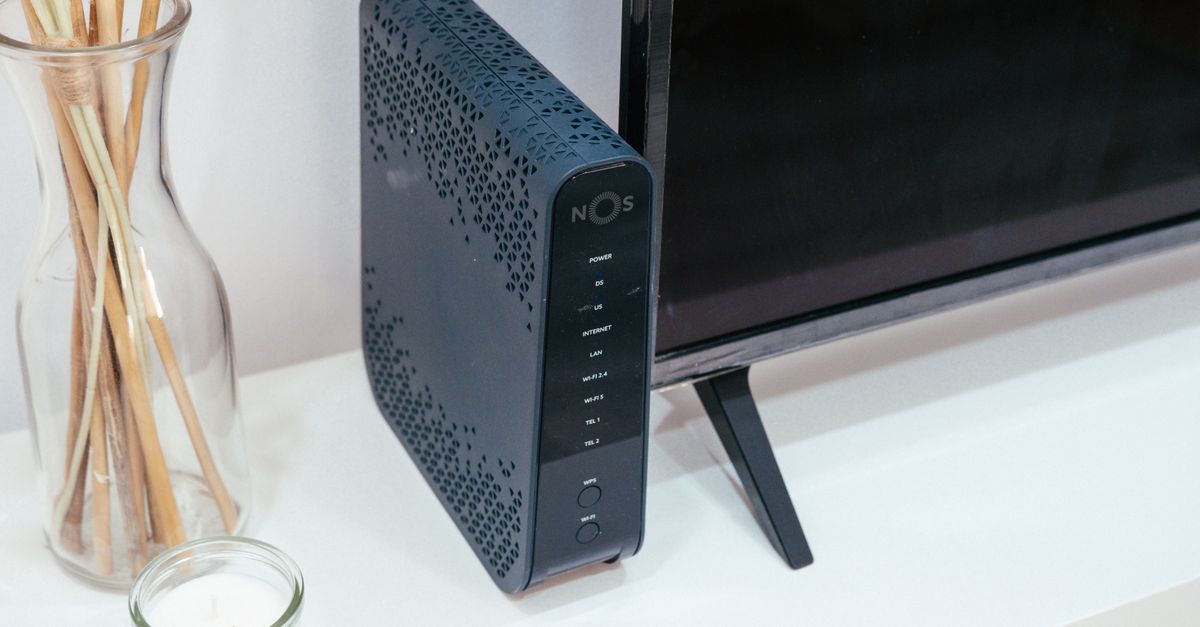
If your VPN stopped connecting after you were put behind an ISP-supplied router, start with the router path. The problem could still be the VPN app, the VPN server, or the protocol you’re using. Begin with mobile data, another device, and a different protocol. If it only fails at home, the ISP router or the network behind it is the likely cause. The quickest fixes are usually a router reboot, a protocol switch, or a setting such as passthrough, bridge mode, or double-NAT handling.
What it looks like when this happens
The usual pattern is simple: the VPN worked before, then it started failing right after the connection moved behind an ISP-supplied router. Sometimes the app never finishes connecting. Sometimes it says it connected, but pages still fail to load. Sometimes only one device or one protocol stops working.
That pattern matters because it points to different causes. A failure before login usually means the app cannot reach the VPN service at all. That can be a firewall, DNS, or protocol issue. A tunnel that connects but does not carry traffic usually points to IPv6, DNS, MTU, or double NAT rather than the VPN account itself.
Before you start
Use the safest checks first so you do not change router settings blindly.
- Test the VPN on mobile data, not your home Wi-Fi.
- Test a second device on the same home network.
- Know which protocol the app is using now, so you can switch it once and compare the result.
- If the router is managed by your ISP, check the provider’s current support notes or admin guide before assuming a menu label means the same thing on your model.
- Stop if the VPN starts working after a reboot or protocol change; you do not need to keep changing settings that were not the real problem.
Is the router really blocking the VPN, or is something else failing?
I usually split this into three failure points: the VPN app, the VPN server, and the router path.
If the VPN fails on every network, the app, account, or server is the more likely problem. If it works on mobile data but not at home, the ISP router or the network behind it becomes the stronger suspect. If only one device fails on the same Wi-Fi, the issue may be on that device rather than the router.
The simplest test sequence is:
- Try the same VPN on mobile data. If it works there, the VPN service itself is less likely to be the problem.
- Try another device on the same home network. If one device works and another does not, the router is not the only thing to look at.
- Switch the VPN protocol once. If a protocol change fixes it, the router or ISP gear may be mishandling the original protocol rather than blocking all VPNs.
- Try a different VPN server. If one server fails but another works, the issue may be the server, the port, or a routing problem outside your home network.
A failure that starts after login is especially useful to watch for. If the app can connect but traffic does not pass, the tunnel itself may be fine while IPv6, DNS, or MTU is breaking normal browsing.
What ISP router settings usually break VPNs
ISP-supplied routers can interfere with VPNs in a few predictable ways.
Firewall rules can block the outbound traffic a VPN needs, especially when the protocol uses UDP. That usually shows up as a connection that never completes, or one that worked before a firmware change and then stopped.
NAT, or network address translation, lets the router share one public IP with your devices. VPNs usually handle NAT, but problems show up when the ISP box is already behind another router, creating double NAT. In that setup, the VPN may not reach the server cleanly, and hosting a VPN server at home becomes even less forgiving.
IPv6 can create odd-looking failures. If the router passes IPv6 traffic but the VPN only covers IPv4, the app may say it is connected while traffic slips around the tunnel or behaves inconsistently. DNS can cause the same sort of confusion when the router rewrites DNS requests or forces its own resolver.
MTU, the largest packet size the path can carry without fragmentation, can also be part of the problem. If the MTU is too large for the router path, the VPN may connect but stall on real traffic.
The protocols most likely to run into trouble on ISP gear are the ones that depend on UDP or stricter port handling. WireGuard, OpenVPN, and IPsec are the first ones I would test. L2TP and PPTP are older and more likely to collide with filtering or compatibility issues. PPTP is especially obsolete and should not be your first choice if you have other options.
What to check first without risking your network
These checks are safe because they do not change the structure of your home network.
- Restart the ISP router and the device running the VPN. Let both come fully back online before you test again. A stale session or a bad NAT table can clear on a restart. If the VPN starts working after this, stop there.
- Test another VPN server. If one server fails and another works, the router is less likely to be the only cause. The problem may be the server, the port, or a temporary routing issue.
- Switch the VPN protocol once. If you are on WireGuard, try OpenVPN. If you are on OpenVPN, try WireGuard. If the client offers UDP and TCP choices, test the other one too. A router that mishandles one protocol may still allow another.
- Check the router’s current firmware status. ISP routers often update on the provider’s schedule, not yours. If the admin page shows a recent update or a pending one, that can explain a new failure. If the ISP controls firmware, verify the current status on the provider’s support pages instead of trusting the menu alone.
- Look for VPN, firewall, NAT, IPv6, or DNS options in the router menus. Labels vary by model, and the same feature can be named differently across ISP gear. In practice, I look for anything that mentions passthrough, SPI firewall, IPv6 handling, DNS forwarding, or double-NAT support before I touch deeper settings.
If the VPN works after one of these checks, you have a usable fix. If it still fails, move on to the router features that are most likely to be involved.
When passthrough, bridge mode, or DMZ actually helps
These settings can help, but they solve different problems.
Passthrough is the lightest change. It tells the router to let certain VPN traffic through instead of inspecting or blocking it. That can help with IPsec, L2TP, or older VPN setups that the router handles badly. If the router firewall was the issue, passthrough may clear it right away.
Bridge mode is the cleaner structural fix. It turns the ISP box into a simple handoff device and lets your own router handle NAT, firewall policy, DNS, and IPv6. If double NAT is the real problem, bridge mode removes one of the layers instead of trying to work around it.
DMZ is the blunt option. It sends unsolicited inbound traffic to one internal device, usually your own router. That can help when you are trying to run a VPN server at home behind the ISP box, but it is not my first choice for a VPN client. It increases exposure, so I would only use it when bridge mode is unavailable and you understand why you need it.
These settings will not help much if the VPN is failing because the app is misconfigured, the server is down, or the ISP upstream is blocking the service before it ever reaches your router. If the same failure happens on mobile data, fix the client or server first.
When to expect a real change
If the ISP router is only doing basic routing and the VPN protocol is allowed, passthrough may be enough. If the router is creating double NAT or applying aggressive filtering, bridge mode is usually the cleaner fix. If the box is locked down and only gives you a few switches, DMZ may be the only workable workaround, but treat it as a last resort for a client-only VPN connection.
If the ISP router is locked down, the real fix may be your own router
At some point, the issue stops being a settings puzzle and turns into a hardware limitation. If the ISP box hides the firewall controls, does not expose passthrough, or keeps forcing its own DNS and IPv6 behavior, a second router is often the practical fix.
That second router sits behind the ISP device, or in front of it if the ISP box can be bridged. Your router then owns the VPN-friendly parts of the network: NAT, firewall policy, DNS handling, and any passthrough or bridge choices you actually need. In practice, this is the cleanest route when the ISP hardware is locked down or too limited to tune properly.
This is especially worth considering if:
- the VPN fails on multiple devices behind the ISP router,
- the ISP menu has no usable VPN or firewall controls,
- bridge mode is available and stable,
- or you keep seeing the same failure after protocol changes.
If you add your own router, keep the ISP box in bridge mode when possible so you do not create another double-NAT layer. If bridge mode is not available, check the ISP’s current support docs for the recommended handoff method, because menus and labels change over time.
The point is not to replace the ISP box because it is annoying. The point is to stop fighting a device you cannot really control.
Conclusion
If the VPN works on mobile data but not behind the ISP-supplied router, start with protocol changes and a reboot. Then move to passthrough or bridge mode if the router actually supports them. If the box is locked down and still breaks the VPN after those checks, add your own router and let it handle the network path.
Frequently Asked Questions
Should I change MTU or port settings first?
No. Start with a reboot, another server, and a protocol switch, because those are safer and tell you more about where the failure is. MTU and port changes can help when the tunnel connects but traffic stalls, but they are harder to judge until you know which part is breaking.
How do I tell DNS problems from a broken VPN tunnel?
If the VPN says it connected but websites do not load by name, DNS is a strong suspect. If nothing reachable works through the tunnel at all, the problem is more likely the tunnel path itself: firewall, NAT, IPv6, MTU, or protocol handling.