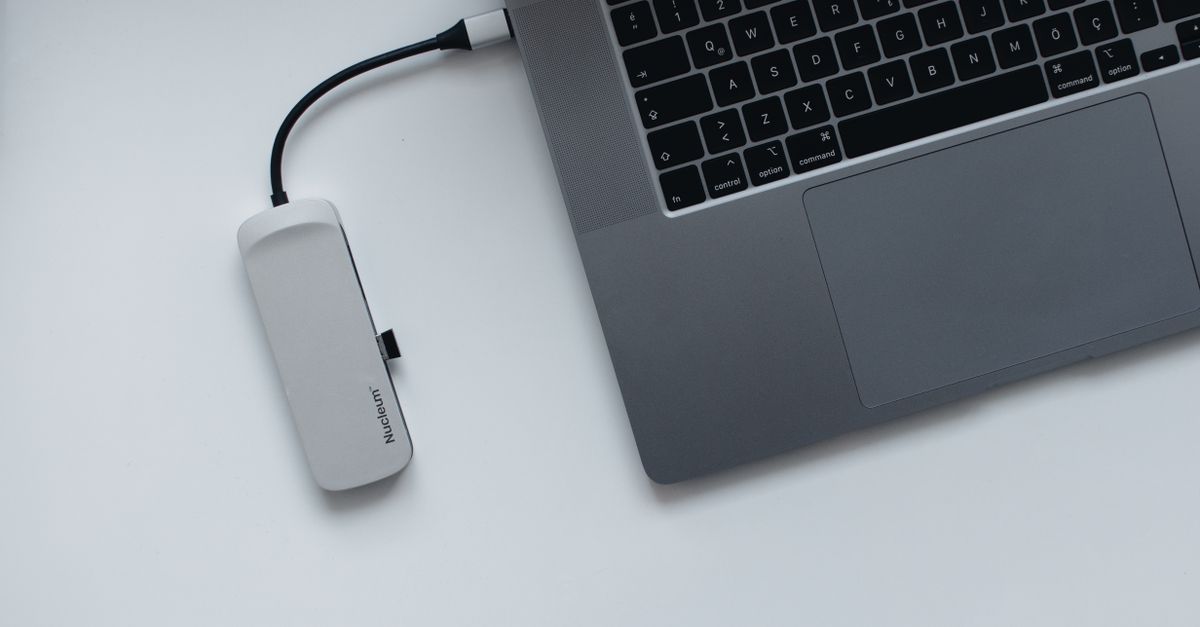
A USB-C Ethernet adapter can show a live link and still fail to open websites by name when DNS resolution is broken. In that state, the adapter and basic network path are working, but the laptop cannot turn a hostname like `example.com` into an IP address. The quickest safe fixes are to check for a valid IP address, default gateway, and DNS server, then renew the lease, flush the DNS cache, and rule out VPN or captive-portal interference before changing DNS servers.
What this symptom really means
When the adapter is connected but name lookups fail, the link is up, yet name resolution is not. That is different from having no internet at all.
If a site opens by IP address but not by name, the network path exists and the problem is usually DNS, a VPN DNS override, captive-portal handling, or a local resolver setting. If even a direct IP address fails, stop treating it as DNS-only and check the gateway, routing, or the network itself.
A useful detail from practice: if you are pinging or browsing a literal IP address, DNS is not involved. So if that test fails too, the issue is broader than DNS.
Check the adapter’s IP, gateway, and DNS servers
The first local check is whether the wired adapter got a clean DHCP lease. You want to see a sensible IP address, a default gateway, and one or more DNS servers on the wired interface. If any of those are missing or clearly wrong, the resolver may be pointing at nowhere.
On Windows, open ipconfig /all and look for the Ethernet adapter’s IPv4 address, default gateway, and DNS Servers entries.
ipconfig /allIf the adapter has an APIPA address like 169.254.x.x, it did not get a proper lease.
On macOS, check the active service in Network settings or use networksetup to inspect the interface.
networksetup -getinfo EthernetLook for a non-self-assigned IP address, a router value, and DNS servers. If the router field is empty when the service should be using DHCP, that is a strong clue.
On Linux, inspect the link, lease, and resolver state.
ip addr show
ip route
resolvectl status
You want to see a non-self-assigned IP, a default route, and a DNS server attached to the wired interface. If the route is missing, DNS may be fine but traffic has nowhere to go.
A few local settings commonly break DNS right after you plug in an adapter:
- manual DNS servers left over from another network
- a static IP profile that no longer matches the current subnet
- a VPN client that rewrites DNS only on the wired interface
- security software that filters or intercepts DNS traffic
- an IPv4/IPv6 mismatch, where the adapter gets one family but not the other
- a dock or driver that leaves the interface with stale resolver state after sleep or reconnect
How to prove it’s actually fixed
Do not trust one site that was already cached. The fix is real only if a fresh hostname resolves and loads after the change, not just a page you visited minutes ago.
Run a new lookup against a hostname you have not used in that session, then confirm it resolves through the wired adapter. On Windows, nslookup example.com is a quick check. On macOS and Linux, dig example.com or resolvectl query example.com does the same job.
Then open a different website by name, not a bookmarked tab or a page already in your browser cache. If the hostname resolves and the page loads, the DNS path is working again. If name lookups still fail on the wired adapter but Wi‑Fi works, go back to the adapter’s DNS servers, the VPN profile, or the office network’s split DNS rules.
If you want one last sanity check, compare the wired adapter’s current DNS servers with the ones on the working connection. A good fix should show the right server in the adapter’s own settings, not just a page that happened to load from cache.
Conclusion
If the wired link is up but hostnames still fail, work from the adapter outward: lease, gateway, DNS server, VPN, then the network itself. Stop changing settings once name lookups work on a fresh hostname.
Frequently Asked Questions
Why does the internet look connected but websites won’t open by name?
Because the wired link is up, but DNS is not resolving hostnames to IP addresses. In that state, the adapter can reach the network at a basic level, yet the browser cannot find the server for a normal URL.
Should I change DNS servers first?
No. First confirm the adapter got a valid IP address, default gateway, and DNS server from DHCP. If routing or the lease is broken, changing DNS alone usually will not help and can hide the real problem.
Can my VPN cause this on Ethernet but not Wi‑Fi?
Yes. Many VPN clients replace DNS settings on the active wired interface, or they use split DNS rules that break when the tunnel is stale. That can leave Ethernet unable to resolve names while Wi‑Fi still appears normal.